Dievio
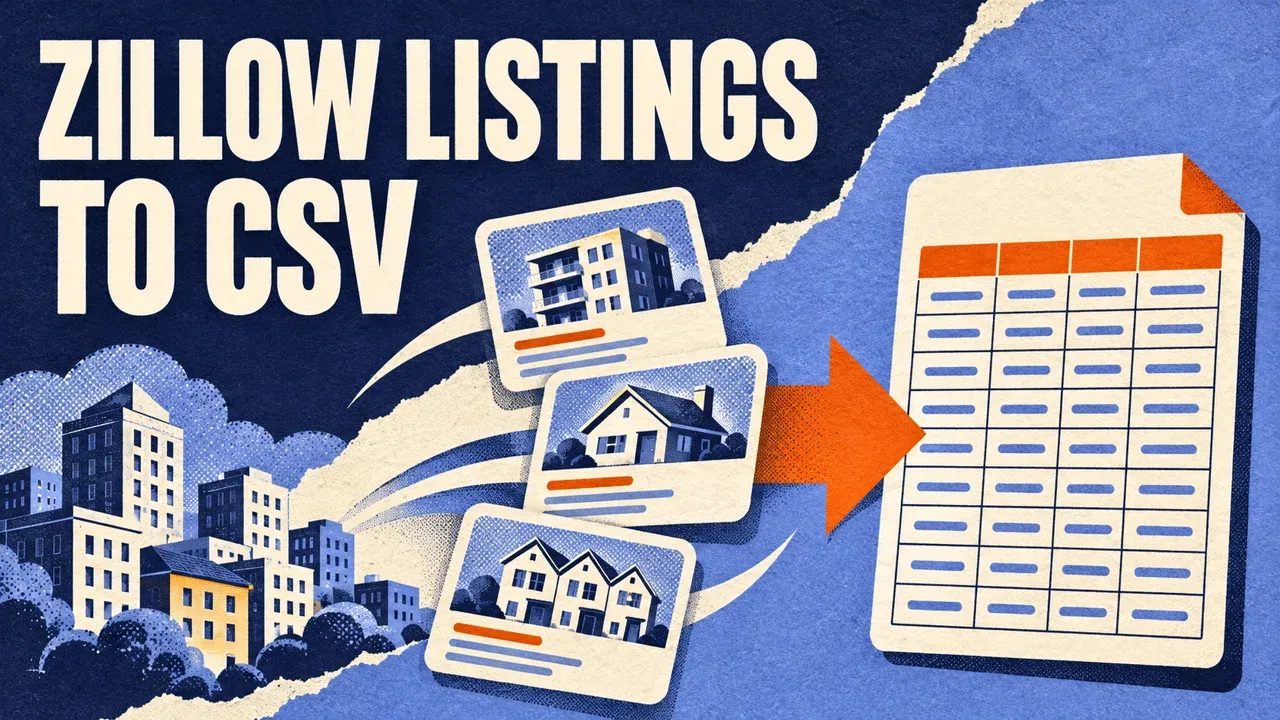
To export Zillow listings to CSV, enter a US city or ZIP code in the Zillow Scraper on Apify, select sale, rent or sold, and start a small run. Download the completed Dataset as CSV. Keep the property’s zpid, listing URL and collection time so you can clean the file and compare later exports.
You can also supply a Zillow search URL whose map area and filters you have already checked. Start with 25 results, review the first rows, then increase the volume or continue the collection. The same workflow can be coordinated by an AI agent through Apify MCP.
Step 1. Choose an area and listing type
Open the Zillow Scraper on Apify, click Try for free and sign in if prompted. Use the editable Input form in Apify Console.
- Enter
Austin, TXunder Cities or ZIP codes. - Choose For sale under Listing type.
- Set Maximum results per run to 25.
- Leave Add full property details off for the pilot.
- Keep advanced collection limits unchanged.
- Review pricing, set Max total charge in the run settings and click Start.
For locations, an omitted listing type defaults to homes for sale. Select it explicitly when you want rentals or sold listings. Use a five-digit ZIP as a string to preserve leading zeros.
The public input reference describes each field. The image below is read-only; your actual search goes into the Console form.

JSON for the same sale-listing test
{
  "locations": ["Austin, TX"],
  "listingType": "sale",
  "maxResults": 25,
  "includeDetails": false
}
Change the city or listing type to fit your research. This is a request for up to 25 rows, subject to available listings, access, collection limits and budget.
Use a Zillow search URL when you already have the filters
Open Zillow in your browser, prepare the intended area and filters, then copy the search URL into startUrls. Leave locations empty for a URL-only run. Each entry is a URL object in the form {"url":"YOUR_CHECKED_ZILLOW_SEARCH_URL"}.
Leave listingType unset to preserve the URL’s listing-type filter. An explicit input choice overrides that type. Additional price or size inputs can also change the search, so keep a record of both the URL and overrides.
When combining locations and URLs, all sources share the run’s result cap. Earlier sources can consume it before later ones are reached. Use separate runs when you need a clear sample for each market or search.
Step 2. Review the listing rows
Open the Dataset when the run finishes. Check a few property links, addresses and prices. Confirm that the rows belong to the intended area and that the listing type matches your question.
| Field group | Keep |
|---|---|
| Identity | zpid, url, address. |
| Location | city, state, zipcode, coordinates when available. |
| Listing and price | status, price, currency, monthlyRent, pricePeriod. |
| Attributes | bedrooms, bathrooms, livingArea, homeType. |
| Available estimates | zestimate, rentZestimate. |
| Collection context | detailStatus, source, scrapedAt. |
Prices are USD, rental filters refer to monthly rent, and living area uses square feet. Keep asking prices, monthly rents and source estimates in separate fields. Missing source values remain empty or null in the result.
Basic rental searches can contain building cards, and some cards lack a ZPID. The dedicated rental and apartment-unit workflow is useful when you need identifiable available units.
Step 3. Download and organize the CSV
- Choose CSV from the completed run’s Dataset export action.
- Include identifiers and source columns as well as your analysis fields.
- Save an untouched original with the search input, run ID and Dataset ID.
- Import ZIP codes and property IDs as text in your spreadsheet.
- Make a working copy for cleaning and merging.
For overlapping searches, keep one current property table keyed by ZPID and a separate search-to-property table. If a row lacks a usable ID, review its URL and address before merging it manually.
For example, search A returns properties 1 and 2 while search B returns 2 and 3. The unique-property table has three properties; the source table retains four search observations. Keep different collected prices with their timestamps when the same property changes between runs.
 Dievio
Your next customer starts here.
Find decision-makers by role, company and location. Build your next prospect list in Dievio.
Find my leadsFree audience preview · No credit card
Add details when the basic fields are not enough
Enable includeDetails to fetch available property-page descriptions, photo URLs, histories, facts and listing contacts. The detailed result rate replaces the basic rate for successfully enriched rows. Review current pricing before changing that setting.
If a listing was found but enrichment failed, a basic row can remain. Read detailStatus and the collection issues. Search continuation skips already saved rows, so it does not automatically enrich those basic records again.
For failed-detail retries, inspect DETAIL_RETRY_INPUT and send its prepared input to the Property Details Actor. For a larger existing listing file, follow the search-to-property-details workflow.
Continue a larger export without repeating the first batch
maxResults is a per-run batch ceiling, shared across the supplied sources. Paid-plan inputs support up to 100,000 saved rows per run. Request, time, traffic, source and spending limits can stop collection earlier.
- Wait for the current run to finish and save its Dataset.
- Open
PAGINATIONin the output or key-value store. - If
hasMoreis true, copy the fullnextInput. - Start another run of this same Actor and account with that input.
- Keep the query unchanged, adjust the next batch cap if needed and set a new budget.
- Combine this new Dataset with the previous batches.
Continue from the latest finished batch. Each new Dataset contains newly saved rows; earlier rows stay in the earlier Datasets. Branching twice from an older run can create overlap. Keep all run and Dataset IDs in a batch log.
Free collections are capped at 100 basic search rows or 25 properties when collecting details across the continuation chain. Continuation does not renew that allowance. Free-plan results still use Apify credits; check the live Pricing tab and your run settings.
Check coverage separately from the saved count
Open RUN_SUMMARY and read status, savedResults, stopReason, coverageComplete and target information. Use ERRORS for source issues and REQUEST_METRICS when request failures need investigation.
Exactly 25 rows can simply mean your test cap was reached. An empty or small file can reflect the search, filters, missing source data or access problems. No remaining continuation pages does not, by itself, establish complete geographic coverage.
Keep saved rows after a limit or partial failure. If a usable continuation is available, retry unfinished work with the same query. If a hard interruption left no checkpoint, retain the partial export and compare identifiers when starting a fresh collection.
Ask your agent to export Zillow listings through Apify MCP
Connect an MCP-compatible agent to https://mcp.apify.com and authorize your Apify account using the MCP setup guide. Supply the intended market and listing type.
Use x_guru/zillow-search-scraper.
Location: [MY_US_CITY_OR_ZIP]
Listing type: sale
First-run maxResults: 25
Approved event-charge cap USD: [AMOUNT]

Inspect the current schema. Keep
includeDetails=false for the pilot.
Apply the approved cap through
callOptions.maxTotalChargeUsd.

Wait for the run. Read every Dataset
page and RUN_SUMMARY. Preserve zpid,
URL, address, price and price period,
property attributes and scrapedAt.
Save the original output and a CSV.
Report source errors, stopReason and
coverageComplete. Save PAGINATION and
all run and Dataset IDs.
Wait before starting another batch.
The agent starts the Actor with call-actor, waits with get-actor-run and reads result pages with get-dataset-items. Keep the same input and latest continuation together if you later expand the collection.
For per-territory quotas, use the multi-ZIP guide. For reported sale dates, use the sold-homes guide. For changes across snapshots, see the price-drop monitor. A repeatable API export is covered in the Apify run and Dataset guide.