Dievio
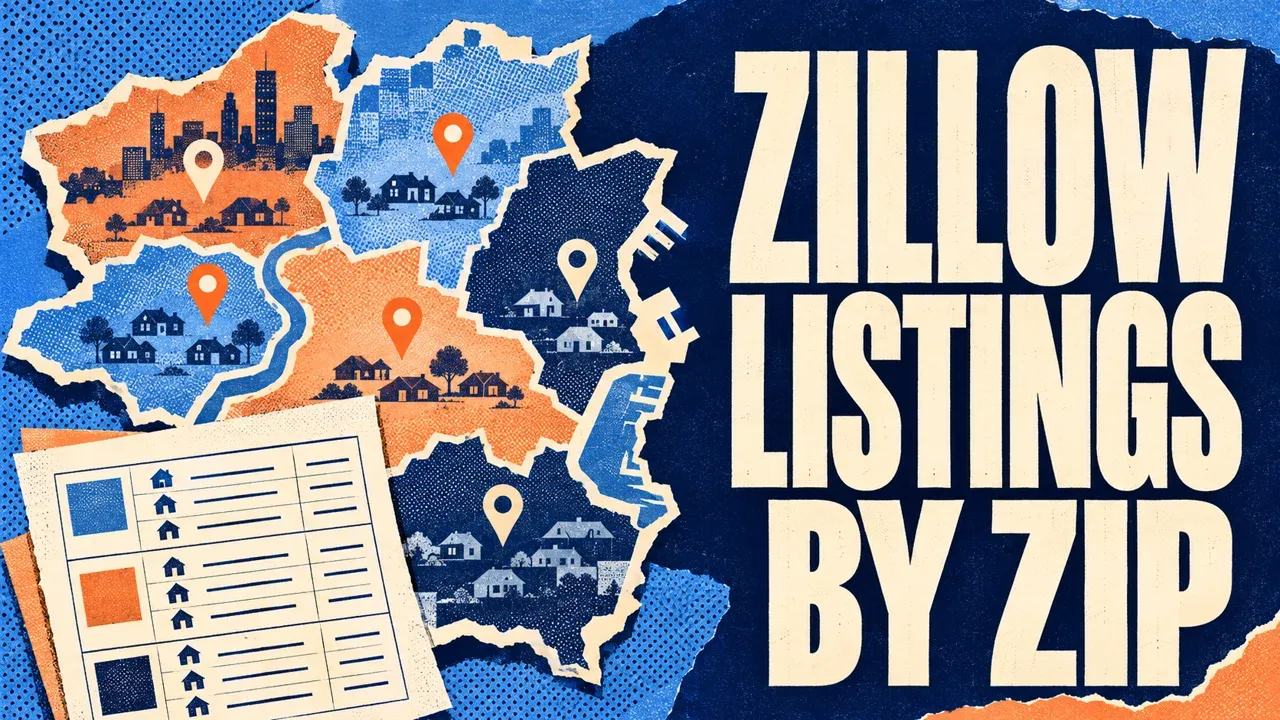
To export Zillow listings across multiple ZIP codes, put your ZIP list into the Zillow ZIP Code Scraper on Apify. Set a quota for each ZIP and a separate result cap for the run, choose sale, rent or sold, then download the Dataset as CSV. Keep the original territory list so you can reconcile coverage for every requested ZIP.
This workflow is useful when each territory needs its own allocation. Start with two ZIPs and ten results per ZIP, inspect the source attribution and summary, then expand the list. An MCP-connected agent can also prepare the input, run the collection and organize the files.
Step 1. Prepare ZIP codes as five-character strings
Keep a source sheet with the requested ZIP, territory name and your intended listing type. Import the ZIP column as text before copying values. 02108 needs its leading zero.
- Use five-digit US ZIP codes, one per input item.
- Remove surrounding spaces, blank cells and duplicate ZIPs.
- Check that spreadsheet formatting has preserved all five digits.
- Choose one listing type for the collection.
- Split lists larger than 100 ZIPs into logged collections.
The Actor accepts up to 100 ZIP entries and searches duplicate ZIPs once. For a city or one prepared search URL, the general Zillow listings guide is a simpler starting point.
Step 2. Set both limits in Apify Console
Open the Zillow ZIP Code Scraper on Apify, click Try for free and sign in if prompted. Open its editable Input form in Apify Console.
- Enter
02108and02109under ZIP codes. - Choose sale for Listing type.
- Set Results per ZIP to 10.
- Set Maximum results this run to 20.
- Leave advanced collection limits unchanged for the pilot.
- Review pricing, set Max total charge in the run settings and click Start.
The public input reference explains the two limits. The image is read-only; enter the actual territory list in the Console form.

{
  "zipCodes": ["02108", "02109"],
  "listingType": "sale",
  "maxResultsPerZip": 10,
  "maxResults": 20
}
For rentals, choose rent; for sold listings, choose sold. Rental price filters use monthly USD. For sale-date criteria and candidate comparable properties, follow the dedicated sold-homes guide.
Understand per-ZIP quota and per-run cap
| Setting | Scope | Practical effect |
|---|---|---|
maxResultsPerZip | One ZIP across the collection and its continuation chain. | A ZIP that reaches its quota stays at that quota during continuation. |
maxResults | Newly saved rows in the current run. | The run can stop before every ZIP reaches its quota. |
| Collection and spending limits | Work and charges allowed for the batch. | Requests, time, source access or budget can stop collection earlier. |
With two ZIPs, ten per ZIP and twenty overall, there is room for both quotas. With an overall cap of twelve, the first ZIP might save ten rows while the second saves two before the run stops. Keep that second ZIP marked as potentially limited until you inspect the summary and continuation.
A reached quota is intentionally limited coverage. Ten results do not establish that a ZIP contains exactly ten matching properties. If your goal is a broader inventory, choose an appropriate quota and review source coverage separately.
Step 3. Review property identity and search attribution
Open the completed Dataset and inspect a few source links. Keep both the requested search ZIP and the property’s returned location fields.
| Field | Use |
|---|---|
recordId, zpid, url | Identify the saved property and review its source. |
searchedZipcode | The ZIP search that first saved the property. |
zipcode, address, city, state | The property’s available location information. |
status, price | Listing type and observed price context. |
bedrooms, bathrooms, livingArea | Property attributes for review. |
source, scrapedAt | Collection evidence and observation time. |
Deduplication across ZIP searches means a property can be saved once even when several searches surface it. searchedZipcode records the first saving search, not every possible search membership.
If you need a complete search-to-property matrix, run ZIPs separately and attach each run’s source ZIP before combining files. Keep that relationship table beside the unique-property table.
 Dievio
Your next customer starts here.
Find decision-makers by role, company and location. Build your next prospect list in Dievio.
Find my leadsFree audience preview · No credit card
Step 4. Export CSV and reconcile every requested territory
- Download the completed Dataset as CSV.
- Preserve ZIP codes and property IDs as text.
- Save the original file with its input, run ID and Dataset ID.
- Build a coverage sheet starting from every ZIP you requested.
- Add saved counts and the reported status for each territory.
- Keep failed, partial, quota-reached and completed outcomes distinct.
Read RUN_SUMMARY, including target information and zipCounts when present. A ZIP with no saved rows can have a genuine empty search, overlap with earlier searches, restrictive filters or a source failure. The saved CSV alone cannot settle that distinction.
Use recordId or the verified ZPID for your unique-property table. Retain the original search attribution and timestamp so deduplication does not erase where an observation came from.
Continue a larger territory collection
After a finished batch, open PAGINATION. If hasMore is true, copy the full nextInput into a new run of this same Actor and account. Use the latest finished batch and set a new run budget.
Keep the ZIP list, listing type, filters and per-ZIP quota fixed. You can adjust the next batch’s total maxResults and advanced limits. Newly saved rows go into the new Dataset; retain earlier Datasets to assemble the complete collection.
For twenty ZIPs with fifty rows per ZIP, the requested allocation is up to 1,000 unique saved rows before source availability and overlap. A 200-row batch cap can make the work easier to inspect in stages. Calculate the remaining allocation from actual saved counts.
The input supports a per-run cap up to 100,000. The Free allowance is 100 rows across the collection’s continuation chain, using Apify credits. Continuation does not renew that allowance. Check current pricing and limits before expanding.
Check a stopped or incomplete ZIP search
Read stopReason, coverageComplete and target statuses in RUN_SUMMARY. Use ERRORS for source issues. A target marked quota-reached can satisfy your requested sample while remaining geographically incomplete.
If the per-ZIP allocation itself needs changing, start a separate collection with the revised quota and retain the previous input history. Compare identifiers across those independent exports. Keep saved rows after a temporary restriction, and use a provided continuation for unfinished work when appropriate.
Run multi-ZIP extraction with your agent through MCP
Connect an MCP-compatible agent to https://mcp.apify.com and authorize your Apify account through the MCP setup guide. Supply the territory list and both limits.
Use x_guru/zillow-zip-code-scraper.
ZIP list: [MY_FIVE_DIGIT_STRINGS]
Listing type: sale
Results per ZIP: 10
First-run maxResults: 20
Approved event-charge cap USD: [AMOUNT]

Inspect the current schema and start
with two ZIPs. Preserve leading zeros.
Apply the approved cap through
callOptions.maxTotalChargeUsd.

Wait for completion and read all pages.
Keep recordId, zpid, searchedZipcode,
property zipcode, URL and source fields.
Save the raw output, a property CSV and
a coverage row for every requested ZIP.
Read RUN_SUMMARY, ERRORS and PAGINATION.
Report quotas reached and unfinished
territories. Save run and Dataset IDs.
Wait before continuing or expanding.
The agent starts with call-actor, waits through get-actor-run and reads output using get-dataset-items. For property enrichment, follow the Dataset-to-details workflow. For regional historical series, see the market-data guide. API downloads are covered in the Apify run guide.