Dievio
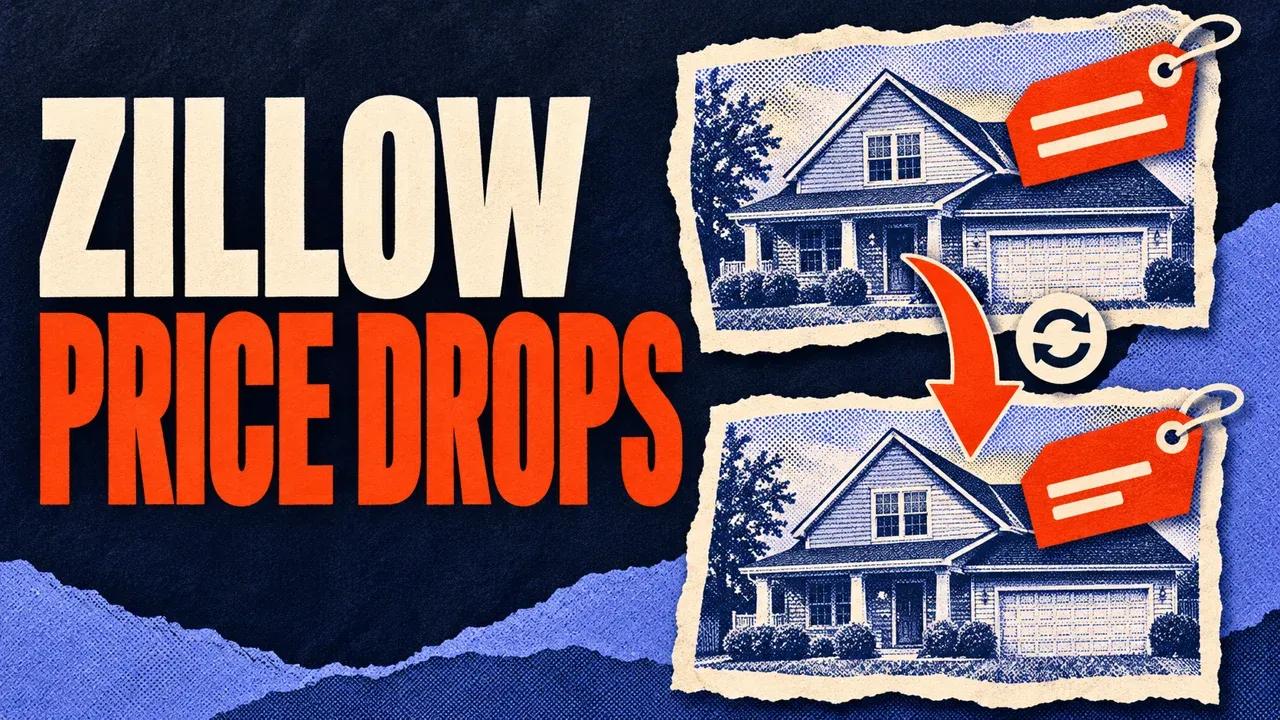
To monitor Zillow listing price drops, run the Zillow Price Drop Monitor on a narrow search with automatic baseline enabled. Finish the first complete scan, then repeat the same input. Review changeType, previousPrice and observedPrice in the next Dataset to find observed price changes.
The Actor maintains a comparison baseline for your account and exact query. A complete scan can become the baseline for the next scan; an incomplete scan preserves the previous complete baseline. Start manually, verify that state, then schedule the tested input.
Step 1. Choose a search small enough to complete
Use one ZIP, a narrow city segment or a checked Zillow search URL. Set a result cap and budget with room for the complete scan. A small cap is useful for testing the format, but a truncated scan cannot establish a complete monitoring baseline.
Open the Zillow Price Drop Monitor on Apify, click Try for free and open the editable Input form in Apify Console.
- Enter your city or ZIP, or use a supported search URL with locations left empty.
- Choose the listing type, such as
sale. - Set Maximum results this run with enough headroom for the intended scan.
- Keep Automatically update comparison baseline enabled.
- Leave the fixed previous scan ID and continuation run ID blank.
- Review pricing, set Max total charge and click Start.
The input reference explains the monitoring controls. The screenshot is read-only; enter the actual query in the Console form.

{
  "locations": ["02108"],
  "listingType": "sale",
  "maxResults": 100,
  "autoBaseline": true
}
This is a starting configuration. If it stops at a cap or source limit, narrow the query or adjust the permitted run limits and budget, then inspect the completion state. The number 100 is not a promise that this ZIP’s scan will finish.
Step 2. Verify the first complete baseline
After the run finishes, open RUN_SUMMARY, MONITOR_BASELINE and MONITOR_STATE. Read collection coverage and baseline state together.
| Record or field | Meaning |
|---|---|
RUN_SUMMARY.coverageComplete | Whether the scan achieved complete coverage under its query. |
MONITOR_BASELINE | The current scan’s snapshot and completeness. |
MONITOR_STATE.comparisonRunId | The previous complete scan used for this comparison, when present. |
MONITOR_STATE.baselineUpdated | Whether automatic comparison state was updated. |
MONITOR_STATE.updateStatus | The explanation for an update, preservation or skipped run. |
For the first complete automatic scan, updateStatus=updated confirms the stored baseline. Keep its run ID, exact query and output. A terminal successful run status can still accompany partial source work, so use the actual coverage and state records.
Step 3. Repeat the exact query and inspect changes
Start a fresh scan with the same location or URL, listing type and filters. Keep autoBaseline true and leave previousMonitorRunId blank for normal automatic monitoring. The latest complete same-query snapshot becomes the comparison.
| Value | Interpretation |
|---|---|
baseline | Initial observation for a baseline scan. |
new | A property is present without a matching previous observation. |
price_drop | The comparable observed price is lower. |
price_increase | The comparable observed price is higher. |
status_changed | Listing status changed; this classification takes priority when price also changes. |
unchanged | No change was detected by the comparison rules. |
not_observed | A previous property was not seen in the completed query. |
Filter price_drop for a basic drop report, then review the previous and observed prices. Also inspect price fields on status_changed rows if your report needs simultaneous price and status changes.
not_observed does not establish a sale or delisting. A property can move outside the filters or disappear from the available query results. Review the original listing and coverage before assigning a cause.
Understand automatic, fixed and continuation modes
Automatic monitoring uses the latest complete scan for the same account and query. Changing geography, listing type or filters creates a different query history, so preserve those settings with every export.
For a fixed comparison, set previousMonitorRunId to a finished complete run from this Actor and account with the same query. That comparison overrides automatic mode and leaves the automatic baseline unchanged.
resumeFromRunId has another purpose: finishing one interrupted scan. It retains that scan’s comparison across batches. Copy the full PAGINATION.nextInput from the latest finished batch and keep the query and baseline settings unchanged.
With automatic mode disabled and no fixed previous run, independent scans create their own baselines. Select the mode deliberately before expecting a comparison across dates.
 Dievio
Your next customer starts here.
Find decision-makers by role, company and location. Build your next prospect list in Dievio.
Find my leadsFree audience preview · No credit card
Read a three-snapshot example
Imagine Monday’s complete scan sees property A at $450,000 and B at $390,000. Its monitoring state becomes updated. Wednesday’s same-query complete scan sees A at $440,000, producing an observed $10,000 drop against Monday.
If Friday’s scan stops at a budget or source limit, keep the saved rows and check updateStatus. incomplete_scan preserves Wednesday’s complete baseline. A continuation can finish Friday’s scan against its pinned comparison without silently switching the reference midway through collection.
Keep each observation run ID and comparisonRunId with the property, prices and timestamps. That makes the actual comparison dates clear when a scheduled scan was skipped or incomplete.
Schedule the tested input in Apify
After a complete baseline, save the normal same-query input as an Apify task. In Console, create a schedule, select the task, choose its frequency and timezone, and review the next run times before enabling it. The official schedule guide covers the controls.
Keep autoBaseline=true, with fixed previous-run and continuation IDs unset in the recurring task. Schedule fresh scans; use continuation separately to finish an interrupted scan. Choose an interval long enough for the scan to complete and keep a per-run budget.
The Actor exports checks and monitoring state. For notifications, connect the completed-run output to your chosen integration or webhook. Configure the recipient and change filter in that integration; the Actor has no default notification destination.
Plan costs and handle incomplete or overlapping scans
Every saved property check is billed as a result, including baseline, unchanged and not-observed rows. Count checks rather than only price changes when planning volume. The result cap includes those rows too.
The maximum requested count is 100,000 per run, subject to source and collection limits. The Free collection allowance is 100 rows across continuation batches, using Apify credits. Read the current Pricing tab and leave headroom for both current observations and relevant missing-observation checks.
If a scan stops early, retain the output, inspect ERRORS and use a provided continuation when appropriate. Read MONITOR_STATE for states such as already_running, incomplete_scan or newer_baseline_preserved. A skipped overlap should not be interpreted as an empty market.
The latest automatic snapshot is stored for the account and query in named Apify storage. It can outlive default run-storage retention. Keep that monitor storage while you need its history; removing it resets the automatic comparison state.
Run monitoring with your agent through Apify MCP
Connect an MCP-compatible agent to https://mcp.apify.com and authorize Apify using the MCP setup guide. Give it the exact query and a budget for each scan.
Use x_guru/zillow-price-drop-monitor.
Query: [MY_NARROW_AREA_AND_FILTERS]
Approved event-charge cap USD: [AMOUNT]

Inspect the current schema. Use
autoBaseline=true. Leave fixed previous
and continuation IDs unset for a fresh
normal scan. Choose maxResults with
headroom for complete query coverage.
Apply the approved cap through
callOptions.maxTotalChargeUsd.

Wait for the run and read all pages.
Inspect RUN_SUMMARY, MONITOR_BASELINE,
MONITOR_STATE, ERRORS and PAGINATION.
Report comparisonRunId, coverage and
updateStatus. Preserve property IDs,
changeType, both prices and observedAt.
Save raw checks and a reviewed CSV.
Explain incomplete or skipped work.
Wait before another paid scan or
creating a recurring schedule.
The agent starts with call-actor, waits using get-actor-run and reads results through get-dataset-items. For a single inventory export, use the listing guide. For source-provided property history, use Property Details. Application downloads are covered in the Apify run guide.