Dievio
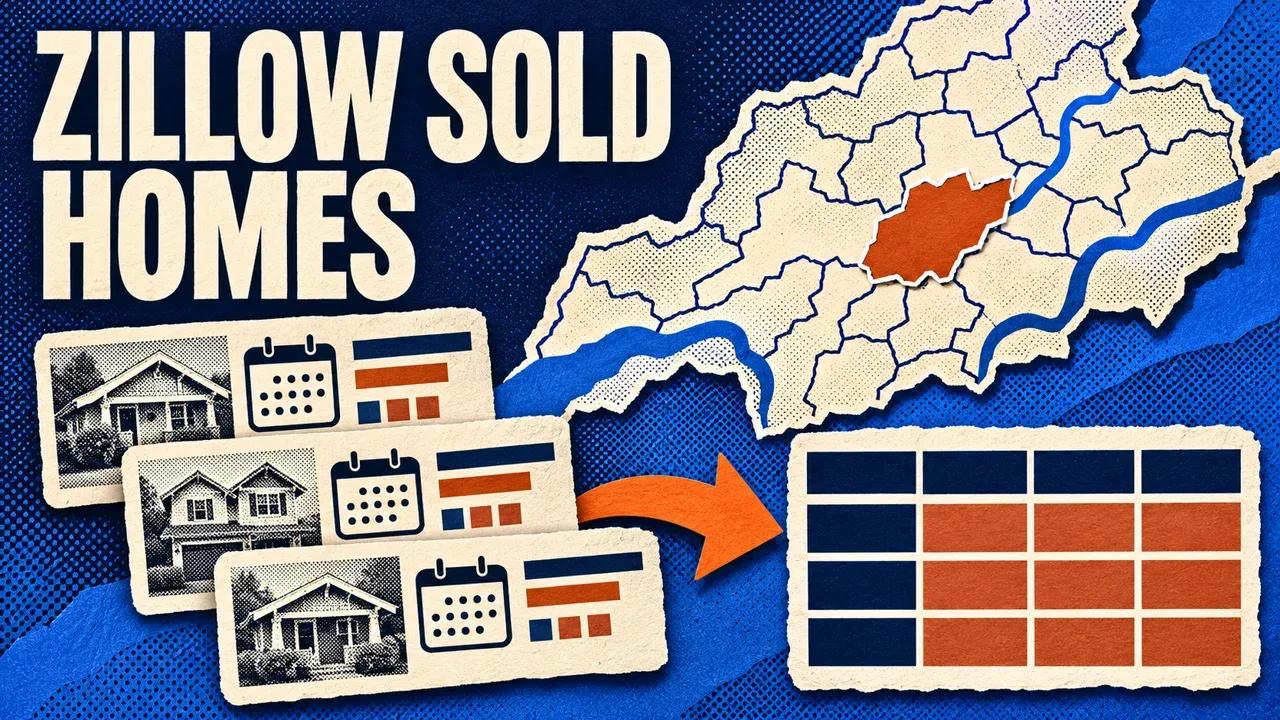
To export Zillow sold homes by ZIP code, enter the ZIP and sale-date window in the Zillow Sold Homes Scraper on Apify. Run a small collection and download its Dataset as CSV. Keep soldDate, soldPrice, the price source and property identifiers so you can review what each row actually reports.
You can also supply a city or a supported Zillow search URL. Optional subject-property criteria narrow the results by distance, bedrooms and living area. They produce candidate comparable properties for review, with source evidence retained in the export.
Step 1. Set the ZIP and sale period
Open the Zillow Sold Homes Scraper on Apify, click Try for free and sign in if prompted. Open the editable Input form in Apify Console.
- Enter a five-digit ZIP under Cities or ZIP codes, for example
02108. - Set Maximum results this run to 25.
- Enter the intended dates under Sold on or after and Sold on or before.
- Leave comparable-property criteria unset for the first format check.
- Review pricing, set Max total charge in run settings and click Start.
The Actor selects sold search automatically. Use the ZIP as text so its leading zero survives. The following example requests July through September 2026; change the period for your actual report.
{
  "locations": ["02108"],
  "soldAfter": "2026-07-01",
  "soldBefore": "2026-09-30",
  "maxResults": 25
}
Both date boundaries are inclusive. When a date filter is active, records without a usable sale date cannot satisfy it and are excluded. The requested limit is a cap on saved rows rather than a count of sales known to exist in the ZIP.
The input reference lists the source, date and subject controls. The screenshot is read-only; enter your values in the Console form.

Use a city or search URL when the area needs to change
A city-and-state input can cover a broader market. A supported search URL can represent an area you prepared in Zillow. For a URL-only test, leave locations empty and provide the URL in startUrls.
This Actor applies sold listing type to its search. Property-detail, building and agent URLs belong in their respective workflows. If you combine locations and URLs, they share the run cap, so use separate runs when you need a clear result for each area.
For a subject near a ZIP boundary, record which areas your search includes. Geographic proximity and administrative ZIP membership answer different questions when reviewing candidate properties.
Step 2. Read sale-date and price provenance
Open the Dataset after completion. Start with a few property links and compare the address, sale date and available price information with the source. Keep the Actor’s price provenance fields in the export.
| Field | Why keep it |
|---|---|
recordId, zpid, url | Identify the property and open its source page. |
soldDate, soldPrice | Preserve the reported sale event and amount. |
soldPriceSource | Retain the evidence label behind the returned amount. |
transactionPriceVerified | Keep the Actor’s explicit verification status. |
bedrooms, bathrooms, livingArea | Review property attributes. |
pricePerSquareFoot, distanceMiles | Use available comparison fields with their underlying data. |
The Actor returns Zillow-reported sale information and sets transactionPriceVerified to false. A populated price therefore still needs the source context and any independent verification required by your report. Unknown sale prices remain null.
Keep asking price, source estimates and reported sale amount in different columns. A property with a known sale date and missing price can remain an unpriced candidate; it should not enter a calculation that requires a sale amount.
Step 3. Export CSV and retain an untouched source file
- Download CSV from the completed Dataset.
- Include identifiers, dates, sale-price provenance and the attributes you will review.
- Save the exact input, run ID, Dataset ID and collection time.
- Import ZIP codes and property IDs as text.
- Create a working review sheet with acceptance and rejection reasons.
When combining overlapping exports, review the property ID and sale date together. Keep distinct reported transactions for the same property separate when the source supports them. Preserve each observation’s collection time so later corrections or changed source data remain traceable.
 Dievio
Your next customer starts here.
Find decision-makers by role, company and location. Build your next prospect list in Dievio.
Find my leadsFree audience preview · No credit card
Add subject criteria for a candidate-comps search
Supply both subject coordinates when adding subject. You can then set a radius in miles, a target bedroom count and a living-area tolerance. Use your actual subject’s location and attributes for the real search.
The following coordinates are an illustrative point near Boston. Replace them and the example attributes with the subject information you have verified.
{
  "locations": ["02108"],
  "soldAfter": "2026-07-01",
  "soldBefore": "2026-09-30",
  "maxResults": 25,
  "subject": {
    "latitude": 42.36,
    "longitude": -71.06,
    "radiusMiles": 2,
    "bedrooms": 3,
    "bedroomTolerance": 0,
    "livingArea": 1600,
    "areaTolerance": 0.3
  }
}
Here, bedroom tolerance zero asks for the same bedroom count. An area tolerance of 0.3 allows a 30% difference: for 1,600 square feet, that is 1,120–2,080 square feet. A record missing the fields needed by an active criterion can be excluded.
The resulting shortlist still needs property-type and context review. Keep the source attributes and your rejection reason, such as a different property type, unclear sale evidence or unsuitable condition. The Actor’s similarity filters do not produce a valuation.
Review a small shortlist before summarizing it
For a fictional three-property sample, one similar home has a reported $480,000 sale, a condo has a reported $430,000 sale, and a third home lacks a sale amount. Your review can retain the similar priced home, flag the condo’s different type and keep the third as unpriced.
For a price-per-square-foot table, require a usable reported price and nonzero comparable living area, retain the source evidence and state how many reviewed observations are included. Keep excluded and uncertain candidates visible in another sheet.
If a ZIP produces few rows, check date, size, bedroom and distance criteria before widening the area. An active date window can exclude properties with unknown dates even when their general sold listing is visible.
Continue larger collections and check coverage
The Actor supports 1–100,000 newly saved property rows per run, subject to the source, collection limits and budget. Manual source lists accept up to 100 entries. The Free allowance is 50 rows across one collection’s continuation chain, with results using Apify credits.
After a finished batch, read RUN_SUMMARY, ERRORS and PAGINATION. If hasMore is true, copy the full nextInput into a new run of the same Actor and account. Keep dates, geography and subject criteria fixed; set a new budget for that batch.
Use the latest finished run and retain every batch Dataset. Continuation saves new rows and preserves progress across the chain. It does not renew the Free allowance or guarantee that a temporary source block has ended.
Check coverageComplete and stopReason separately from the saved count. A capped or partial export should remain labelled as such. A finished queue can still contain source issues that prevent a complete geographic or transaction report.
Run sold-property extraction with your agent through Apify MCP
Connect an MCP-compatible agent to https://mcp.apify.com and authorize your Apify account using the MCP setup guide. Give it the actual area, dates and any verified subject criteria.
Use x_guru/zillow-sold-homes-scraper.
ZIP or city: [MY_AREA]
Sale window: [START_DATE] to [END_DATE]
First-run maxResults: 25
Approved event-charge cap USD: [AMOUNT]

Inspect the current schema. Keep subject
criteria unset unless I supply verified
coordinates and attributes.
Apply the approved cap through
callOptions.maxTotalChargeUsd.

Wait for the run and read all pages.
Preserve property IDs, URLs, soldDate,
soldPrice, soldPriceSource,
transactionPriceVerified and attributes.
Keep unknown prices and dates explicit.
Save raw output and a review CSV.
Read RUN_SUMMARY, ERRORS and PAGINATION.
Report stop reason, coverage and run IDs.
Wait before widening or continuing.
The agent starts the Actor with call-actor, waits using get-actor-run and reads Dataset pages with get-dataset-items. Keep its source evidence and batch settings with the reviewed file.
For an individual property’s history, use the Property Details guide. For active asking prices, see the listing export guide. For regional series, use the Zillow market-data guide. Application exports are covered in the Apify run and Dataset guide.