Dievio
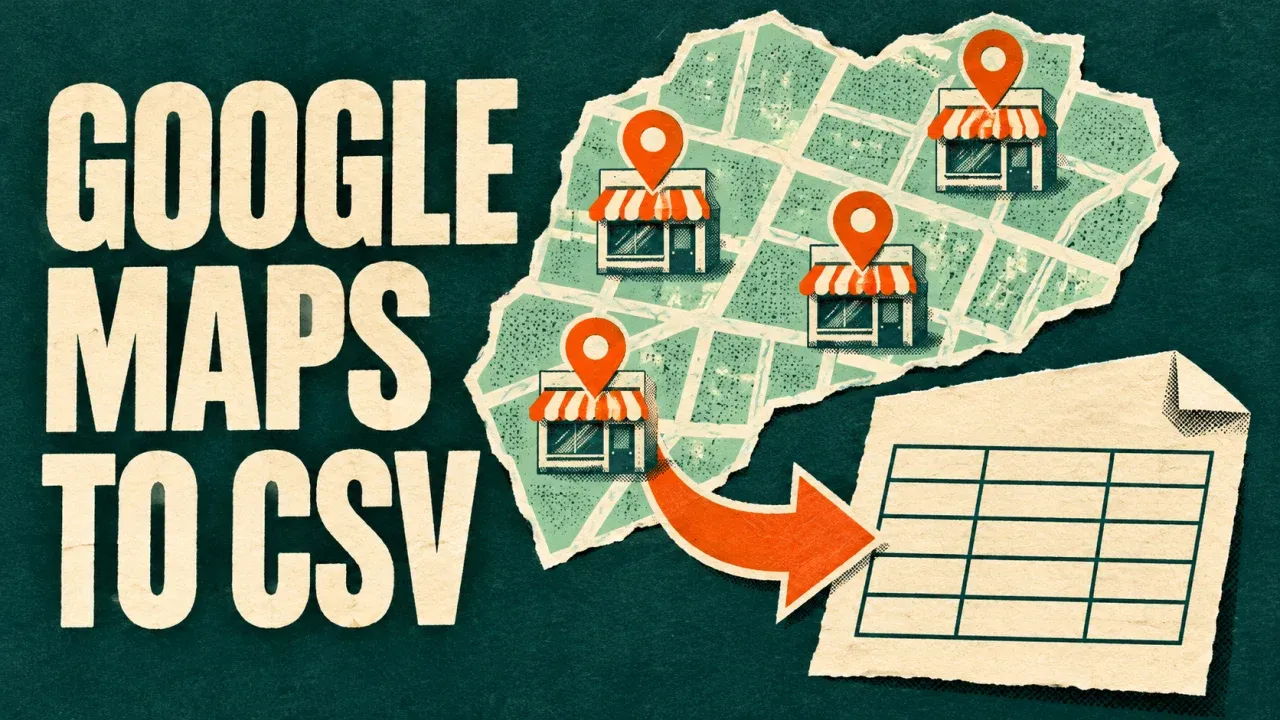
To export Google Maps businesses to CSV, use the Google Maps Scraper with a business category, a city and a result limit. It collects place records you can download from Apify into a spreadsheet. Keep each location’s placeId alongside its name, address, website and phone so you can clean the list and reuse it later.
You can do the first export entirely through the Actor’s input form. Start with a small local search, inspect the businesses it returns, then expand to other categories and cities. An AI agent connected through Apify MCP can also handle those steps for you.
Choose the right Google Maps Actor for your result
This guide builds a list of businesses. Each saved row represents a place. If your goal is specifically email contacts or customer reviews, there are separate workflows that use this list or search for those results directly.
| What you need | Start here |
|---|---|
| Businesses, websites, addresses and phones | Follow the Google Maps Scraper instructions below. |
| Business emails from a category and city | Use the Google Maps Email Extractor guide. |
| Reviews for specific locations | Use the place URLs or IDs in the Google Maps reviews guide. |
| Emails added to an existing places CSV | Follow the Maps dataset enrichment workflow. |
Step 1. Enter a category, a city and a small limit
Open Google Maps Scraper on Apify, click Try for free and sign in if prompted. This opens the Actor in Apify Console. Use its Input form to enter the search.
- In Search term(s), enter
bike repair shop. Use the kind of phrase you would type into Google Maps. - In Location, enter
Portland, Oregon, USA. Keep one city or concrete area per run. - Set Number of places to 20. In JSON, this field is
maxCrawledPlacesPerSearch. - Leave the website selection at
allPlacesfor a general business list. - Leave optional review, image and contact enrichment extras off for this first export.
- Review the current price and run spending limit, then click Start.
The public input reference explains each field. To enter your own values, use the editable Input form in Apify Console.

Copy this example into the JSON editor
If you prefer JSON, this input describes the same first run. Change the term and location to fit the market you want to research.
{
  "searchStringsArray": ["bike repair shop"],
  "locationQuery": "Portland, Oregon, USA",
  "maxCrawledPlacesPerSearch": 20,
  "website": "allPlaces",
  "language": "en",
  "strictLocationBounds": true
}
The limit applies to each search term or URL. With three terms and a limit of 100, you can request up to 300 place results before overlap and source availability affect the saved total. It is a collection target, so the final export may contain fewer rows.
Step 2. Review the Dataset before downloading it
When the run finishes, open its Dataset. Look at several rows and their Maps links. Are they the right business type? Do the addresses fall in the intended area? Are the website and phone fields useful for your next step?
Check locations near the boundary as well as central ones. The Actor supports location bounds, but a good first export still needs a quick geographic review. Keep strictLocationBounds enabled when you want results constrained to the resolved search area.
| Column | How you will use it |
|---|---|
placeId | Identify a location across searches and future exports. |
title, address | Review the business name and physical location. |
website, phone | Prepare website research or business contact work. |
url | Open the original Google Maps listing. |
searchString, location | Keep available search context with the result. |
A blank website field means the returned record did not supply a website. Open the listing before deciding that the business has no site. Two branches can share a company website while having different Place IDs and addresses; keep those branches separate.
Step 3. Export the businesses to CSV
- Open the completed run’s Dataset and choose its export or download action.
- Select CSV for Excel, Google Sheets or a CRM preparation sheet.
- Include the identifiers and source columns as well as the contact fields you need.
- Save an untouched original file with the city, term and run ID in its name or a companion log.
- Make a working copy for cleaning and merging.
Use JSON when you need nested detail fields that are awkward in a spreadsheet. For a basic business list, CSV with one row per place is usually the easiest starting point.
Deduplicate the working list by placeId. Keep rows with a missing ID in a review sheet and compare their Maps URL and street address before merging manually. A shared brand name or domain alone is not enough to establish that two locations are the same place.
 Dievio
Your next customer starts here.
Find decision-makers by role, company and location. Build your next prospect list in Dievio.
Find my leadsFree audience preview · No credit card
Expand to multiple categories and cities
Once the first search looks right, increase the limit and add closely related categories. The input accepts up to 100,000 places per search term or URL, subject to the available source, filters, spending limit and run completion. A high accepted limit does not promise that a city contains that many matching businesses.
For several cities, save a separate task or run for each city. For example, research Portland and Beaverton separately, then combine their CSVs. This makes it easier to retry an incomplete area and understand where each result came from.
Searches such as bike repair shop and bicycle workshop may overlap. Keep a master sheet with one row per Place ID and a separate source sheet with the city, term, run ID and Place ID. If you need every category membership, run the terms separately: a combined run that deduplicates places may retain only the first query attribution.
Use known URLs or Place IDs instead of a keyword search
If you already know the listings, use startUrls for supported Maps URLs or placeIds for their IDs. This is useful for refreshing a fixed business list. Remove the example search term and location when switching to a known-place input so you do not accidentally collect an extra search.
For a precisely defined area, the Actor also supports structured location fields and custom geography. Clear locationQuery when you want structured fields to control the location, because the free-text location takes priority. Check the current input reference for the supported geometry shape before using it.
Understand filters, costs and incomplete searches
You can select withWebsite or withoutWebsite when that distinction matters to the project. Website availability filters are paid options in this Actor. Extra details, contact enrichment, reviews and images can also add charges. Check the current Pricing tab and use a spending cap when expanding the search.
Open RUN_SUMMARY in the run’s default key-value store. Read searchHealth, coverageComplete, warnings and filterRejections when present. A successful run status tells you the Actor finished its process; the summary helps explain whether each requested search had usable coverage.
- The run reached 20 rows: it may have reached your cap. Increase the limit if you need a broader list.
- The run returned fewer places: review the query, boundary and filters, then check whether the source was exhausted or unavailable.
- The Dataset is empty: distinguish a valid empty search from filtering and source loading problems before widening the area.
- Only some searches completed: keep their rows, record the unfinished terms and retry those terms separately.
Ask your AI agent to run the export through Apify MCP
An MCP-compatible agent can run the search and read the Dataset through Apify’s hosted server at https://mcp.apify.com. Connect your client and authorize your Apify account using the Apify MCP setup guide. Give the agent the Actor name and your actual search settings.
Use x_guru/google-maps-scraper to prepare a business CSV.

Category: bike repair shop
Location: Portland, Oregon, USA
First-run limit: 20 places
Approved run budget in USD: [AMOUNT]

Inspect the current Actor schema. Use searchStringsArray,
locationQuery and maxCrawledPlacesPerSearch for this search.
Use allPlaces and strict location bounds. Keep optional
review, image and contact enrichment extras off.
Apply the approved cap using callOptions.maxTotalChargeUsd.

Wait for the run and read every page of its Dataset.
Keep placeId, title, address, website, phone, url and the
available search context. Check RUN_SUMMARY and report
incomplete sources or coverage warnings.
Save the original results and a CSV deduplicated by placeId.
Include the run ID and Dataset ID. Report the returned
count and wait for my next instruction before expanding.
The agent can inspect the Actor with fetch-actor-details, start it with call-actor, check progress with get-actor-run and read rows with get-dataset-items. For a large Dataset, it should read successive pages using limit and offset. Save the files through the capabilities available in your client.
What to do with your Google Maps CSV next
Use the exported websites for website email enrichment, or send the Place IDs to the reviews workflow. If you want email leads directly from a city search, follow the dedicated Google Maps email guide.
For a repeatable application or scheduled task, keep the same input and follow the Apify run and Dataset export guide. Your Place IDs, source files and run IDs make the next export much easier to compare.