Dievio
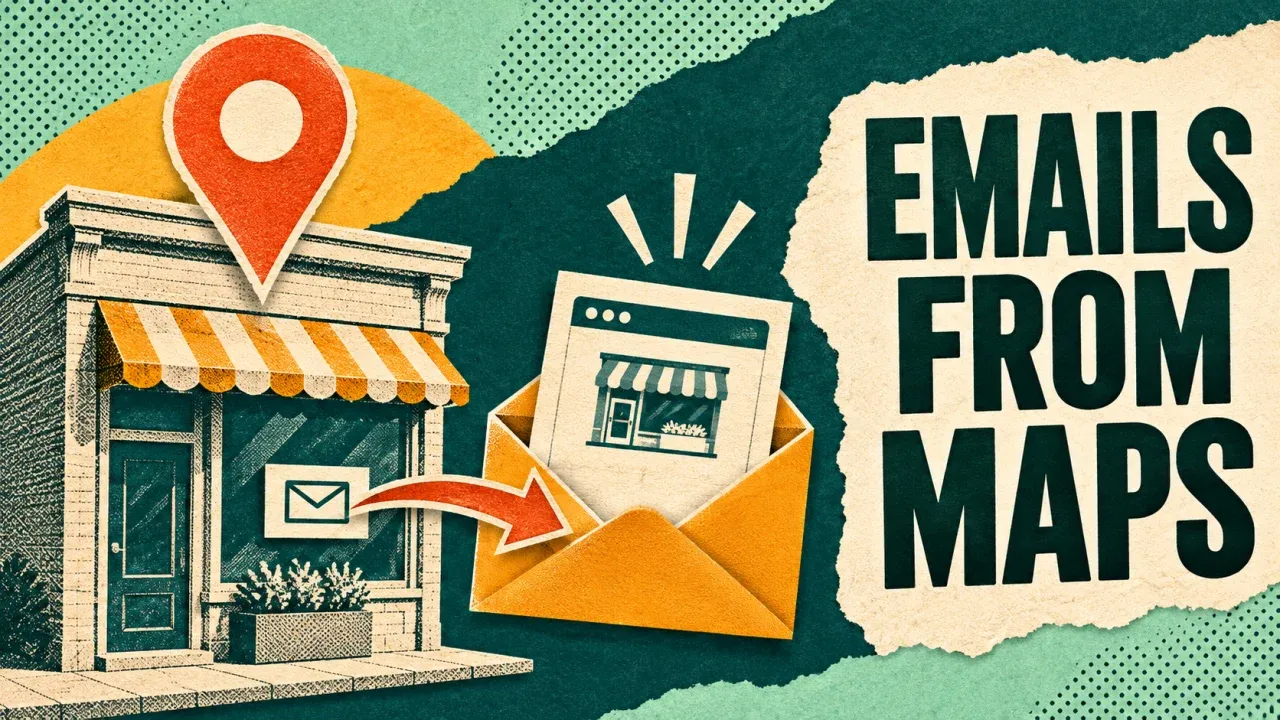
To find business emails from Google Maps, use the Google Maps Email Extractor. Enter a business category and a city, choose how many email leads you want to save, and run the Actor in Apify. It finds relevant places, visits their associated business websites and collects published email addresses with source details.
You can do this with one Actor and an input form. The emails come from websites linked to the businesses: a Maps listing supplies the business and website context, then the website crawl supplies the contact evidence.
Choose direct email search or existing-list enrichment
Use this Actor when you are starting with a market, such as bike repair shops in Portland. If you already have a CSV and must keep every original place in the final report, use the separate Maps dataset-to-website enrichment workflow.
| Your starting point | How to proceed |
|---|---|
| A business type and city | Use the search fields below. |
| Known Google Place IDs | Enter them in placeIds. |
| Known Maps listings | Enter supported URLs in startUrls. |
| An existing places CSV with websites | Keep the CSV and join website contact results back to it. |
| A list of websites without Maps data | Use the website email scraper guide. |
Step 1. Set up a small email search
Open the Google Maps Email Extractor on Apify and click Try for free. Sign in and open its editable Input form in Apify Console.
- Enter
bike repair shopin Search term(s). - Enter
Portland, Oregon, USAin Location. Use one concrete area for the run. - Set Number of email leads to save to 10. This corresponds to
maxCrawledPlacesPerSearch. - Choose
emailsOnlyfor the contact result mode. - Set the contact page limit to 2 for the first pass.
- Set
includePersonalDatato false if you mainly want generic company inboxes. - Review the Actor’s Pricing tab, set your spending limit and click Start.
The input reference shows the current labels and options. The screenshot below is a read-only field reference; enter your search in the Console form.

JSON for the same first run
{
  "searchStringsArray": ["bike repair shop"],
  "locationQuery": "Portland, Oregon, USA",
  "maxCrawledPlacesPerSearch": 10,
  "contactResultMode": "emailsOnly",
  "contactPagesLimit": 2,
  "includePersonalData": false,
  "website": "withWebsite",
  "language": "en"
}
The website availability filter is a paid option. Keep the current pricing and your budget in view when using it. Turning off personal data keeps mostly generic addresses such as info, sales or contact inboxes; review the returned addresses for your own use case.
Understand what “ten email leads” means
In emailsOnly mode, the result limit targets saved business rows with email contacts. It does not mean the Actor will inspect only ten places. It can search and scan additional businesses while trying to find ten eligible rows.
One saved business can contain several addresses in its emails array. Count businesses and unique email addresses separately. Ten business rows do not necessarily mean exactly ten distinct inboxes, especially when several branches share a company contact.
| Mode | What is saved |
|---|---|
emailsOnly | Business rows with an email match. |
contactsOnly | Rows that meet the Actor’s broader contact criteria. |
allPlaces | Eligible place rows including those without email. Other active filters still apply. |
If you need a denominator such as “how many of these 100 shops had email?”, keep a fixed original place list. A search that saves only email matches cannot, by itself, show every business that was considered or excluded.
Step 2. Check the emails and their source pages
When the run finishes, open the Dataset. Begin with a few businesses you can recognize. Compare their Maps listing, website and returned addresses. Open the source page to confirm that the email belongs to the intended business.
- Keep
placeId, the business title, Maps URL andwebsite. - Read the returned
emailsarray. - In
emailDetails, keep each address together with itssourceUrl,domainMatchand available type. - Use
contactStatusand the crawl details to understand how the row was enriched.
For a fictional shop, an address such as service@northstar.example found on its contact page is a sourced contact. The source URL tells you where it was published. Deliverability and whether it reaches the right team are separate checks before outreach.
A shared franchise website can return a head-office inbox. Keep that as a company-level contact until the page establishes that it serves the specific branch. A domain match is helpful evidence, but it does not identify the person or local team behind the inbox.
 Dievio
Your next customer starts here.
Find decision-makers by role, company and location. Build your next prospect list in Dievio.
Find my leadsFree audience preview · No credit card
Step 3. Download a useful email CSV
- Open the completed run’s Dataset and choose CSV export.
- Include the place identifiers, business name, website and email fields.
- Keep source details in the export where available. Download JSON as well if nested
emailDetailsare difficult to read in CSV. - Save the original file with its run ID and Dataset ID.
- Prepare a contacts sheet with one row per place and email when you need individual addresses.
For a clean contacts sheet, preserve placeId, email, sourceUrl and the original business context. Deduplicate repeated place-and-email pairs. If you create a separate unique-inbox list, retain a mapping back to all businesses associated with each inbox.
Scale the search and understand missing contacts
The saved-lead target accepts values up to 100,000 per search term or URL. Increase gradually after reviewing the small test. The number of available matches depends on the category, area, websites, scan depth and spending limit.
Use one city per run and save a task for each market. A multi-term search may contain overlapping businesses; deduplicate by Place ID when combining exports. Keep the source search and run ID if you need to trace how each lead was found.
When a business has no saved email
A business may have no listed website, publish only a contact form, or place its address beyond the current page limit. A website can also be blocked or incomplete. In emailsOnly mode, a place without a match may never appear in the saved Dataset.
To investigate a fixed sample, submit known Place IDs, select allPlaces and use website: "allPlaces" if you want to include places without listed sites. Remove the example category search. Keep the original ID list, and set the result target high enough for the sample.
Review contactSignals.pagesFetched and available website crawl details. If the evidence suggests the relevant contact page was missed, try a page limit of 3–5 for those places. Increasing depth can help reach more pages, but it also increases work and cannot create an address that the site does not publish.
Check why the run stopped
Read RUN_SUMMARY in the run’s key-value store. Compare target, saved and targetReached, then read exhaustionReason. The reasons target_reached, frontier_exhausted and charge_limit_reached tell different stories about the same saved count.
If a charge limit stopped collection, keep the saved contacts and label the search partial. If the search frontier was exhausted, check enrichment.contactPagesFetched and filteredBeforePush before changing the city or scan depth. A missing row without successful crawl evidence remains unconfirmed.
Run Google Maps email search with your agent and Apify MCP
You can ask an MCP-compatible agent to handle the run and contact export. Connect your client to https://mcp.apify.com and authorize your Apify account using the official MCP setup guide. Give the agent the exact Actor name, area, target and budget.
Use x_guru/google-maps-email-extractor.
Find business emails for bike repair shops in
Portland, Oregon, USA.

Inspect the current input schema first.
Target 10 saved business rows using emailsOnly.
Use contactPagesLimit=2, includePersonalData=false,
website="withWebsite" and language="en".
Approved run budget in USD: [AMOUNT]
Apply it through callOptions.maxTotalChargeUsd.

Wait for the run. Read the complete Dataset and RUN_SUMMARY.
Preserve placeId, title, website, Maps URL, emails and each
email's sourceUrl and domainMatch where available.
Save the raw output and a contacts CSV with one row per
placeId and email. Keep company-level contacts identifiable.
Report saved businesses, distinct emails, stop reason,
run ID and Dataset ID. Ask before expanding the search.
The agent starts the run with call-actor, waits using get-actor-run and reads results with get-dataset-items. Large Datasets need successive pages. Ask it to preserve the source evidence when flattening the results into a CSV.
Keep your next step tied to the contact source
For a complete place inventory, use the business CSV guide. For contact coverage across an existing file, enrich that file and join the results back. To repeat these runs from your own application, follow the Apify API and export guide.