Dievio
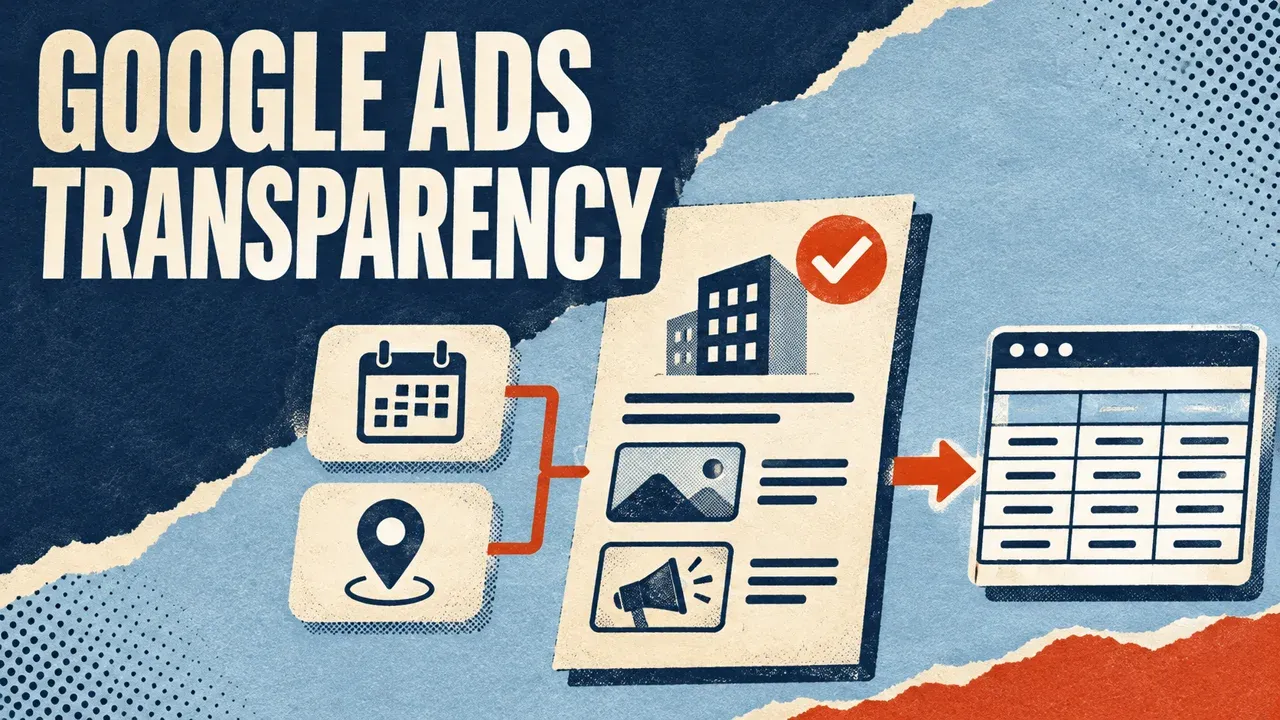
To export Google Ads Transparency Center ads to CSV, enter a company domain, confirmed advertiser ID or Transparency Center URL into the Google Ads Transparency Scraper. Choose the country and format, keep creative details enabled, and run a small collection. Check advertiser identity and coverage before downloading the flat CSV.
You can also monitor creative changes with the same Actor. First establish a complete baseline, then repeat the same advertiser search. This guide explains the initial export, larger batches, repeat monitoring and an AI-agent workflow through Apify MCP.
Pick an input that identifies the right advertiser
Open the official Ads Transparency Center and review the business you want. A domain is a useful discovery input, while an advertiser ID is a more precise choice for a repeatable series.
| Input | When to use it | Important detail |
|---|---|---|
| Company domain or website URL | Discover associated advertisers | Results can include agencies, resellers or several entities. |
AR... advertiser ID or advertiser URL | Track a confirmed advertiser | Review the source identity first. |
| Exact advertiser name | Resolve a known source name | Ambiguous names return candidates for review. |
Creative URL with AR... and CR... | Look up one specific ad | Use All countries. |
A domain association does not verify ownership. Exact-name resolution is not a general keyword search over every ad's text. If the name is ambiguous, inspect candidates in TARGET_REPORT, confirm the intended advertiser in the public center, and start a new search with its ID.
Make your first export in Apify Console
- Open the Actor, click Try for free, sign in and open the editable Input form.
- Replace the example targets with one company domain or your confirmed advertiser ID.
- Set Maximum ads in this run to 10 for an initial review. It is one global limit after deduplication.
- Choose All countries or the intended search country and select the ad format.
- Keep Include creative details enabled and use collect mode.
- Review the current Pricing tab and Run options spending limit, then start.
- Open Google ads, Results and coverage and Results by target. Download the flat CSV once the scope is understood.

This image is a read-only reference for the fields. The editable form is in Apify Console. Here is equivalent JSON for a small domain discovery run; review the returned advertiser association before using it as a competitor report.
{
  "targets": ["nike.com"],
  "maxResults": 10,
  "country": "ALL",
  "adFormat": "all",
  "includeDetails": true,
  "mode": "collect"
}
The form prefills 10 ads for a preview, while API input without maxResults defaults to 100. Specify the cap explicitly. A successful run can still contain partial coverage, so inspect the reports rather than relying on the green run status alone.
Apply country, format and last-shown filters correctly
Country and format are requested from Google's source. They describe the search scope, not precise reach or audience targeting. Supported formats are text, image, video and all. A direct creative URL requires all countries; use a domain or advertiser search when a country filter matters.
lastShownFrom and lastShownTo are inclusive UTC calendar dates compared with the source's last-shown date. Filtering happens after fetching pages. A narrow window can therefore require more requests, and ads without usable dates are excluded and counted in the report.
Copied URLs can supply supported domain, region and format settings, overriding the corresponding form controls. Unsupported date or platform URL filters produce an error. Move the supported date constraints into the form rather than assuming arbitrary Transparency Center URL parameters will work.
Know what one exported row means
One dataset row is one unique Google creative ID. Several extracted variants remain inside that row. When several targets return the same ad, it is saved once and attributed to the first target that delivered it.
| Purpose | Fields |
|---|---|
| Trace advertiser and creative | advertiserId, adId, adUrl, advertiserUrl |
| Review input matching | advertiserName, advertiserDomain, matchStatus |
| Inspect content | adFormat, headline, description, imageUrl, videoUrl |
| Preserve dates and scope | firstShownDate, lastShownDate, requestedCountry, searchTarget, observedAt |
| Review extraction completeness | creativeContentStatus, extractedVariantCount, variantsTruncated |
Use the flat CSV for scalar columns and JSON for nested variants and regions. Details extract up to three variants per ad by default; the Advanced variant limit is configurable. A true variantsTruncated means some source variants were not extracted.
Missing facts stay null. Image text is not OCR-transcribed. displayUrl is displayed text, not a verified final landing page. Images and YouTube videos are links rather than downloaded media. Open adUrl for the source ad; preview resources are not guaranteed to be ordinary image files.
 Dievio
Your next customer starts here.
Find decision-makers by role, company and location. Build your next prospect list in Dievio.
Find my leadsFree audience preview · No credit card
Collect multiple companies and continue larger exports
Up to 50 targets share the total result cap. Default round-robin collection takes up to five ads per target turn; sequential mode gives earlier inputs priority. A broad first target can consume the global limit in sequential mode.
- Inspect
TARGET_REPORTfor each target andERRORSfor unresolved names or source issues. - Check
RUN_SUMMARYfor saved counts, completion and stop reason. - Open Continue: next input. If
PAGINATION.hasMoreis true, copynextInputinto a new run. - Keep the same targets, filters, details setting and creative-variant limit. Adjust supported spending or resource limits as needed.
- Continue each predecessor once and combine the separate batch datasets. Retained progress skips previously delivered IDs.
Paid input accepts up to 100,000 ads, subject to source and run limits. Free accounts allow up to 100 saved ads across a continuation chain. These limits do not establish tested throughput or complete historical coverage. A source restriction can persist on a later run.
Monitor creative changes with a stable baseline
Select monitor mode, keep details enabled and save a Task with an Apify schedule. A Task supplies its identity automatically. For direct or API checks, use a stable monitorKey. Run one monitor sequentially and keep independent clients or scopes under different names.
The first complete collection creates BASELINE. Later observations include NEW, UPDATED and UNCHANGED; inspect CHANGES for comparison records. NOT_OBSERVED after a completed search means absent from that observation, not proof that the ad ended.
A partial collection does not replace the completed baseline. Neither does a collection containing ads for which only an undecoded preview could be extracted. Complete limited work through continuation and keep content-status fields with your report. Signature changes in temporary preview links alone do not establish a creative update.
For example, a new creative ID on Friday is newly observed in your chosen scope. It is not necessarily the first day the campaign existed. Keep both the source shown dates and your own observedAt. Monitor runs bill saved observations, including unchanged ads; a quiet change report can still have run costs.
Use Apify MCP with your AI agent
Connect your compatible agent to https://mcp.apify.com and authorize Apify. The official MCP guide explains connection options. Ask for a bounded discovery first, then select the exact advertiser before scheduled monitoring.
Inspect x_guru/google-ads-transparency-monitor
using Apify MCP. Collect 10 ads for nike.com,
all countries and formats, with details.
Set callOptions.maxTotalChargeUsd to 0.25.
Read RUN_SUMMARY, TARGET_REPORT and ERRORS.
Show advertiser identities and matchStatus.
Export every saved row to CSV and preserve
creativeVariants in JSON. Report truncated
variants and incomplete targets.
Ask me to review advertiser identity before
creating a monitor or another paid batch.
The agent should use fetch-actor-details before call-actor, follow an unfinished run with get-actor-run, then read all result pages with get-dataset-items. Reports come from get-key-value-store-record. Returning only the first result page is not a complete export.
Separate public creative research from account reporting
This workflow does not expose private spend, conversions or campaign performance. For an account you manage, use its authorized Google Ads reporting. A shown date and advertiser association do not establish exact commercial impressions.
For Meta creatives, use the separate Meta Ads Library export guide. To automate downloads in your application, follow the Actor API and Dataset workflow. For other sources, use the Actor selection directory.