Dievio
Key points
- Sales Navigator has no direct CSV or Excel export for saved leads or accounts.
- Export a permitted CRM view and check whether it contains public profile URLs.
- Use Record ID to reconcile the lookup report with your original CSV.
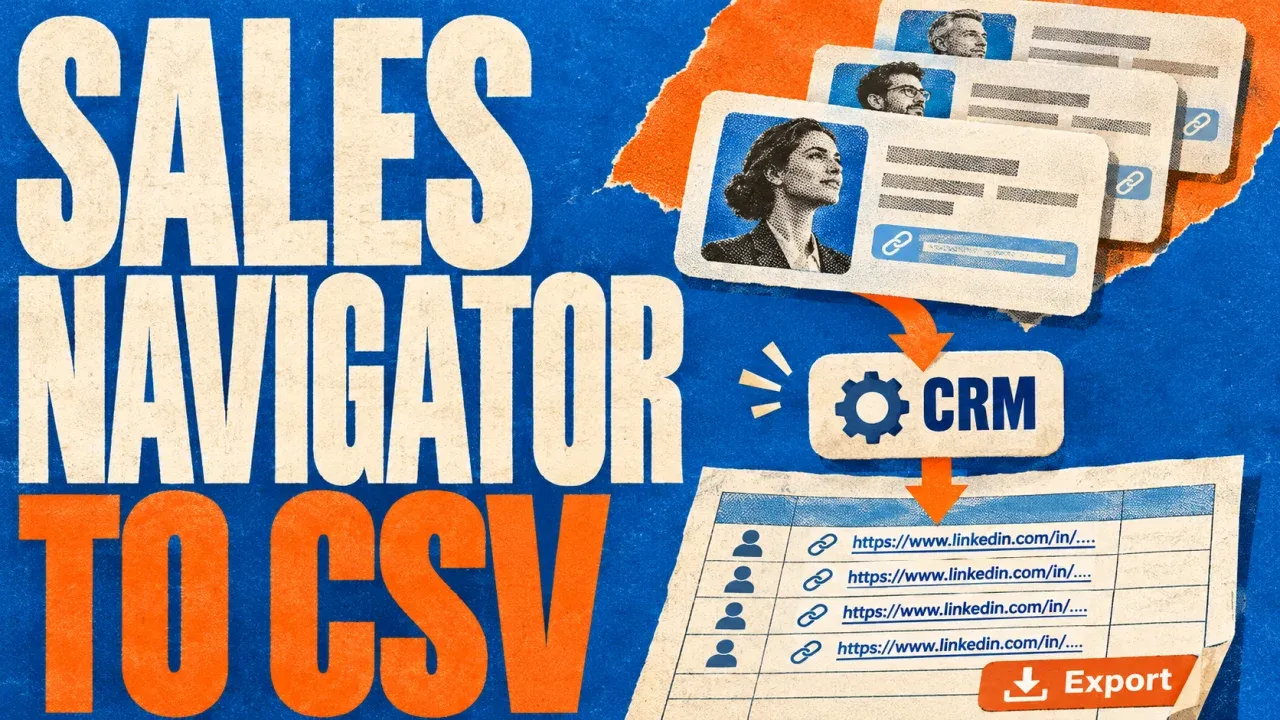
LinkedIn Sales Navigator has no built-in CSV or Excel export for saved leads or accounts. If your team uses Sales Navigator Advanced Plus with CRM Sync, you can create eligible records in a supported CRM and export the records you are authorized to access from the CRM. Check which fields your CRM actually holds before planning an export. LinkedIn’s export guidance.
Which route fits the data you already have?
| Starting point | Next step |
|---|---|
| A saved list inside Sales Navigator | Check whether Advanced Plus and CRM Sync are enabled. Use the CRM record creation action for individual leads your team is authorized to add. |
| Contact records already in your CRM | Export a permitted CRM view with its record ID and the fields you need. Check whether a public LinkedIn profile URL is included. |
| A CSV containing public LinkedIn profile URLs | Keep the source IDs and use the public profile URL column for contact lookup. |
| Only Sales Navigator lead-page URLs | Find and verify the public profile for each known person before using a public-profile lookup. |
CRM Sync and record creation depend on your plan, CRM and permissions. LinkedIn lists HubSpot, Microsoft Dynamics 365 Sales, Oracle Sales and Salesforce for CRM Sync. It lists contact creation for all four and lead creation for Microsoft Dynamics 365 Sales, Oracle Sales and Salesforce. LinkedIn’s CRM Sync permissions table.
Export a small CRM view and inspect its columns
- Open an eligible record in your connected CRM. Confirm the person’s identity and the fields available in your CRM.
- Find the populated property your team uses for public LinkedIn profile URLs. LinkedIn’s contact creation instructions list the fields collected at creation. Check the actual record for a public URL rather than assuming the integration populated it.
- In HubSpot, open the Contacts view you have permission to export. Add Record ID and the populated profile URL property to the view. Select Export and choose CSV with the properties in the view.
- Open the file and confirm that the expected IDs and URL values are present before proceeding. Keep the original file so you can join the results back to the CRM.
These steps cover exports from your CRM. See LinkedIn’s contact creation instructions and HubSpot’s record export guide.
 Dievio
Your next customer starts here.
Find decision-makers by role, company and location. Build your next prospect list in Dievio.
Find my leadsFree audience preview · No credit card
Prepare the LinkedIn profile URL column
Use public profile URLs in the form https://www.linkedin.com/in/example-profile/. A link under /sales/lead/ is a Sales Navigator page. Check the identity on the public profile before replacing a URL in your file. If the export has no profile URL column, keep those records separate until you have verified public profile addresses.
The following example uses fictional CRM records to show the file layout and the values you may need to review. It is a sample input for the workflow.
Record ID,First Name,Last Name,LinkedIn URL
demo-101,Casey,Example,https://www.linkedin.com/in/dievio-example-101/
demo-102,Riley,Example,https://www.linkedin.com/sales/lead/example-102
demo-103,Morgan,Example,
demo-104,Jordan,Example,https://www.linkedin.com/in/dievio-example-104/
demo-105,Taylor,Example,https://www.linkedin.com/in/dievio-example-105/
If your next step uses Apify, look up work emails from the exported public LinkedIn URLs and keep the original Record IDs.
Run Lookup and reconcile the report by Record ID
- Open Dievio LinkedIn Lookup, upload the CSV and select its public profile URL column. Keep the remaining columns in the input so the report can preserve them.
- Review the valid URL count and start with a small batch. Use the option for work emails and add phones only if your handoff requires them.
- Select Download CSV report. Join its rows to your source by Record ID and review each outcome before updating the CRM.
| Status | What to check |
|---|---|
matched | The profile matched. Review the returned fields because email or phone can still be empty. |
no_result | The URL was checked without a matching result. |
missing_url | The selected cell was empty. |
unsupported_url | The selected cell held an unsupported value, such as a Sales Navigator lead-page URL. |
not_checked | The URL is eligible but was outside the completed lookup. |
For a wider migration that includes several data sources, see the lead data migration guide.
What about CSV downloads in Sales Navigator admin reports?
The Match Data Report can download a sample of unmatched CRM records for troubleshooting CRM Sync. It is scoped to matching issues. For the current download conditions, see LinkedIn’s Match Data Report guidance.